
USB-C to HDMI: Choosing the Right Connection for Your Display
How to connect a laptop to a TV or monitor with USB-C to HDMI, how DisplayPort compares with HDMI, and what to check for resolution and refresh rate.
// ON THIS PAGE
Connecting a laptop to a television or monitor seems simple until you look at the ports. A newer computer may have USB-C, while the screen has HDMI. A desktop might offer HDMI and DisplayPort. All can carry digital video, but they are not interchangeable in every situation. A usb c to hdmi cable or adapter links compatible devices for work, presentations, gaming, or streaming. The computer's USB-C port must support video output, and the adapter must match the resolution and refresh rate you need.
First, Confirm That USB-C Can Send Video
USB-C describes the connector's shape, not every function it supports. Some ports handle charging and data only; others also send video through DisplayPort Alternate Mode, Thunderbolt, or supported USB4 features. Check your computer's specifications before buying. If its USB-C port does not support video output, a basic adapter will not produce a picture.
Choose the Connection Around the Screen
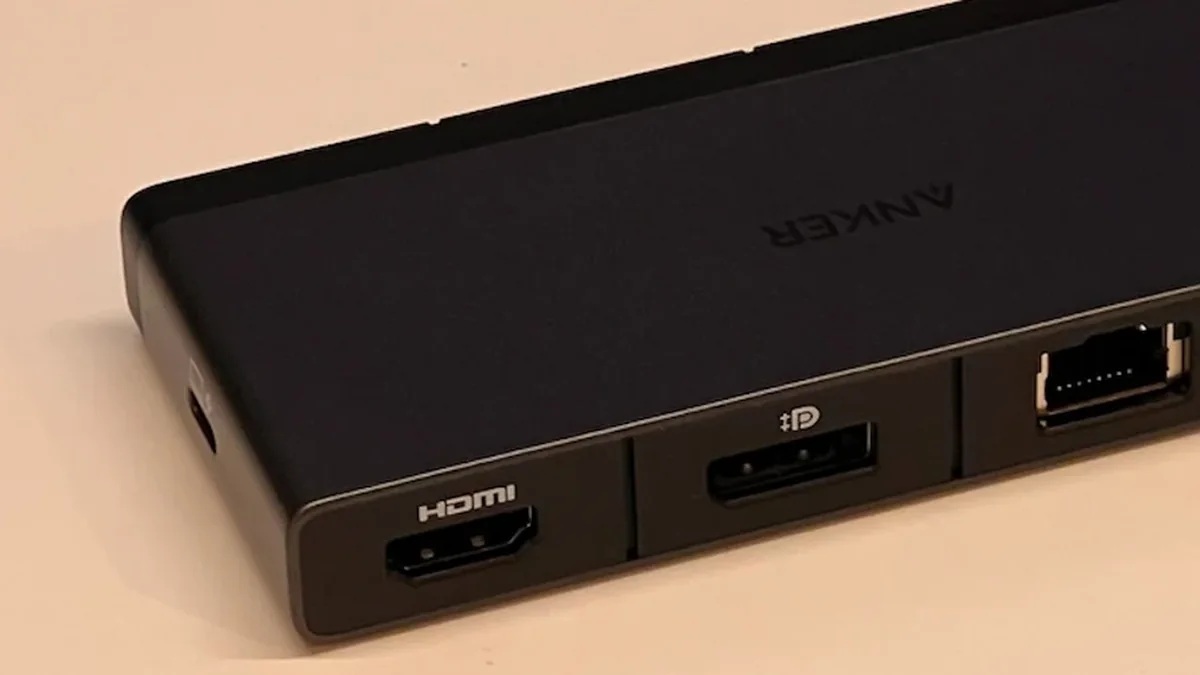
HDMI is common on televisions, projectors, monitors, and game consoles. It is practical for showing a laptop screen on a TV or connecting to a meeting-room display. HDMI can carry audio as well as video when both devices support it. A USB-C-to-HDMI adapter connects a computer with video-capable USB-C to an HDMI display. Products may be compact adapters or cables with USB-C at one end and HDMI at the other. Check the specifications and select the correct HDMI input after connecting.
DP Cable vs HDMI: What Is the Difference?
The comparison of DP cable vs HDMI often comes up when choosing a connection for a desktop PC, gaming monitor, or workstation. Both DisplayPort and HDMI transmit digital video and can carry audio, but they are common in different setups. DisplayPort is widely found on computer monitors and graphics cards. It is frequently used in PC workstations and gaming setups, particularly when a monitor's resolution or refresh-rate capabilities make its DisplayPort input a good fit. Some DisplayPort configurations also support daisy-chaining compatible monitors.
HDMI is common in home entertainment equipment. Televisions, streaming devices, consoles, projectors, and many monitors use it, making it convenient when connecting a computer to a TV. Neither connector is automatically better. The result depends on the versions supported by the computer, cable, and display, along with the resolution and refresh rate required. Compare the specifications of the exact devices instead of choosing by connector name alone.
Match Resolution and Refresh Rate
Resolution describes the number of pixels in the picture. Refresh rate describes how often the image updates each second. Both matter, particularly on high-resolution monitors and gaming displays. An adapter that works at 1080p may have different limits at 4K or support a lower refresh rate at a higher resolution. The computer, adapter, cable, and screen all need to support the intended combination. For presentations, browsing, or video, a standard supported setting may be enough. Gaming or creative work may call for a higher refresh rate. Check the complete signal path before paying extra for headline specifications.
If the Screen Says "No Signal"
Make sure the monitor is set to the correct HDMI input. Reconnect the adapter, confirm that the USB-C port supports video, and use the computer's display settings to detect the external screen or choose whether to mirror or extend the desktop. If possible, test the adapter with another display or try a known-working adapter with your computer. This helps identify whether the issue is the computer, adapter, cable, or screen. Some multiport adapters also need external power, so check the instructions.
Buy for the Setup You Actually Have
Before ordering, note the computer and display models, available ports, and the resolution and refresh rate you want. When comparing dp cable vs hdmi, look for clear specifications and a reasonable return policy. Anker is one brand you may see when comparing connectivity accessories, but the exact product's supported modes matter more than the name on the box. Cable length matters too. A short adapter can keep a desk tidy, while a longer cable may be easier to use with a television across the room. Avoid sharply bending the cable near its connector.
Conclusion
A USB-C-to-HDMI connection links a compatible computer to a television or monitor, but the port, adapter, and display must support the same video requirements. DisplayPort and HDMI each have strengths; the right choice depends on your equipment and the image settings you need. Confirm compatibility and compare resolution and refresh-rate support before buying.
FAQs
Does every USB-C port support HDMI output?
No. The port must support video output, such as DisplayPort Alternate Mode or a compatible Thunderbolt or USB4 feature. Check the computer's specifications first.
Is DisplayPort better than HDMI?
Not in every case. Both provide high-quality video and audio. The better option depends on device support, resolution, and refresh rate.
Can I connect a laptop to a TV with USB-C to HDMI?
Yes, if the laptop's USB-C port supports video output and the adapter supports the TV's HDMI requirements. Select the correct HDMI input.
Why does my monitor show "No Signal"?
The USB-C port may not support video, the wrong HDMI input may be selected, or the adapter and display may not support the same signal. Test each connection separately.
Does HDMI carry sound as well as pictures?
Yes. HDMI can carry digital audio and video over one cable when both connected devices support audio over HDMI.
For more practical guides on everyday tech, home and money, explore the rest of Internet Chicks.